Datamap-Survey Answers
Overview
This document provides a high-level overview of how a selected datamap is associated with a survey/Assessment. It outlines the configuration that links survey responses to specific datamap fields, enabling users to define the relationship between survey/assessment and the datamap structure.
1.Logging In
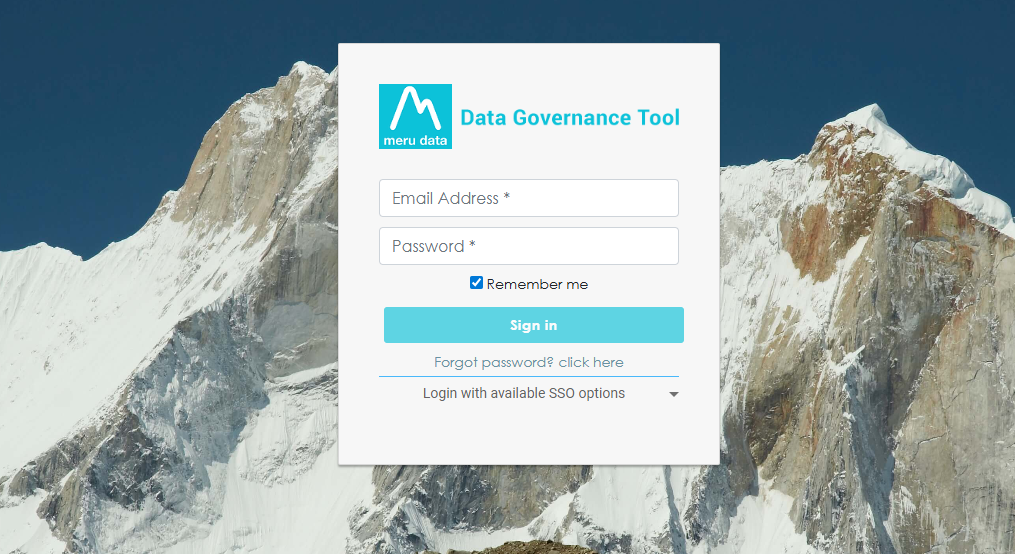
Login to the Data Governance Tool by entering your credentials.
2. Navigating to Datamap Module
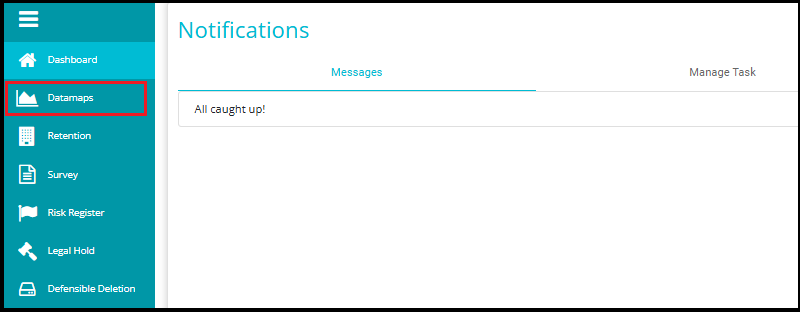
Click on the hamburger icon
 on the top left corner.
 Click on 'Datamap module' from the menu.
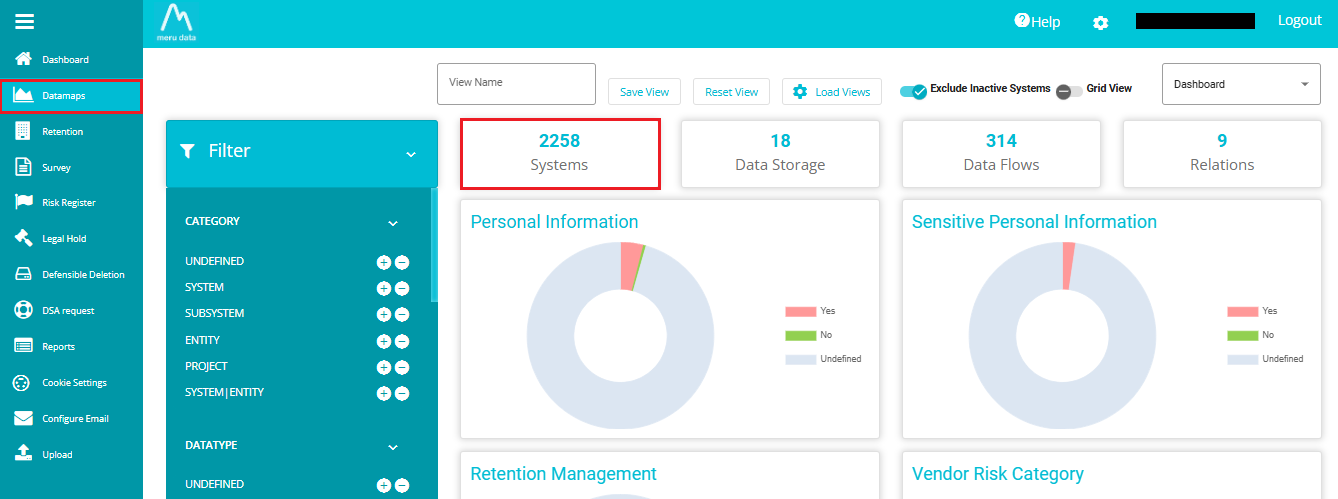
3. Click on the Systems Tab
Inside the DataMap module, go to the Systems tab.
This tab displays all the systems available in your environment.
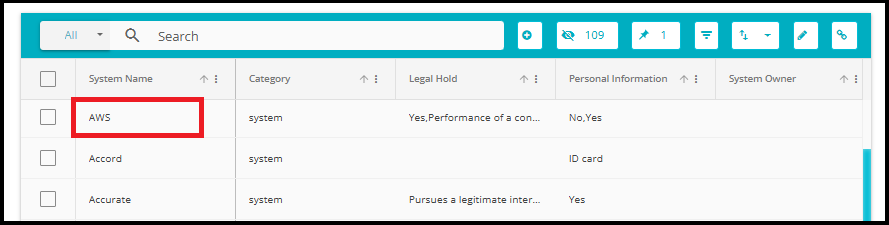
- From the Datamap page, click on the Datamap system name for which you want to view survey answers.
- From the System Details tab, navigate to the Survey Answers tab.
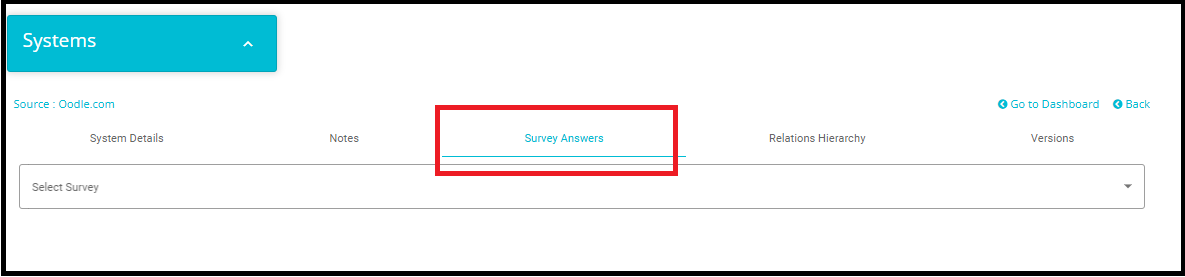
- Here we can see the Surveys associated with this System. Select the survey of your choice from the Select Survey dropdown menu.
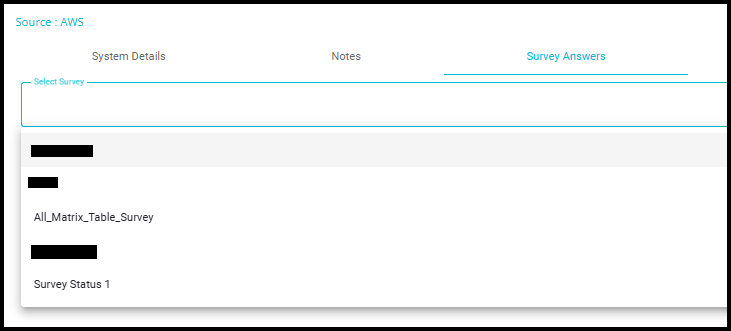
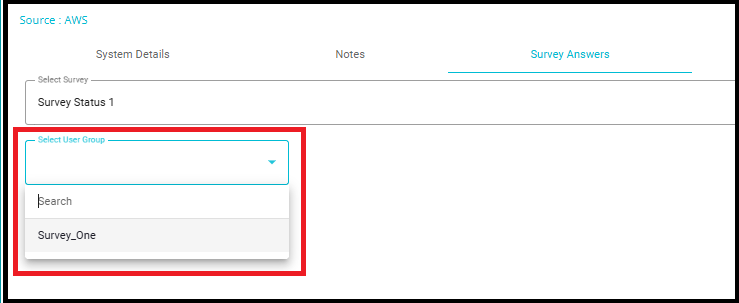
- When Survey groups are created, Datamap Systems are added to those groups. The surveys conducted by the Survey groups associated with the particular system are found here.
Note: After selecting the survey or assessment, the group associated with the selected datamap system will be displayed.
- By selecting a survey and a user group, you can view the survey questions along with their corresponding answers.
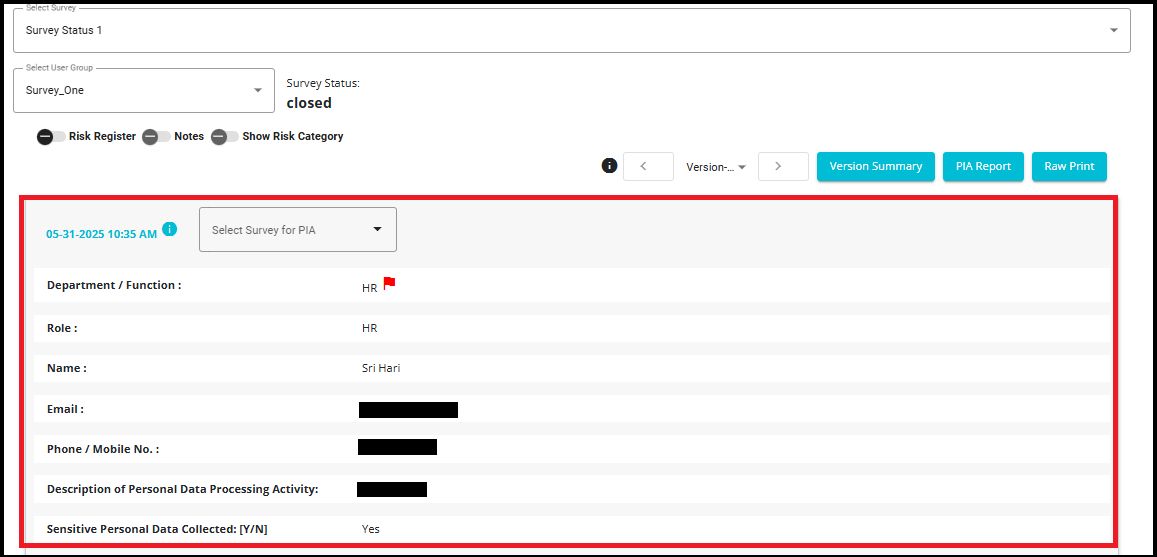
- Enable Risk Register to add risks to the survey answers.
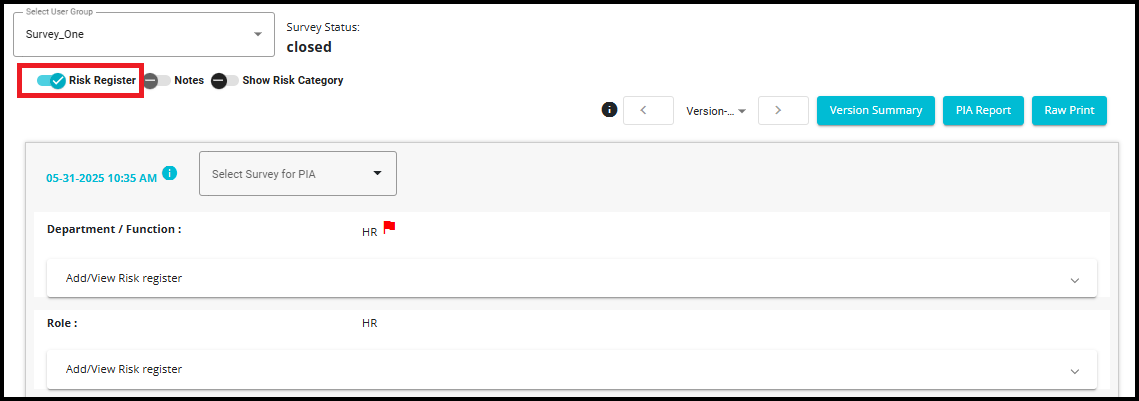
- To add Notes, Enable the Notes Option.

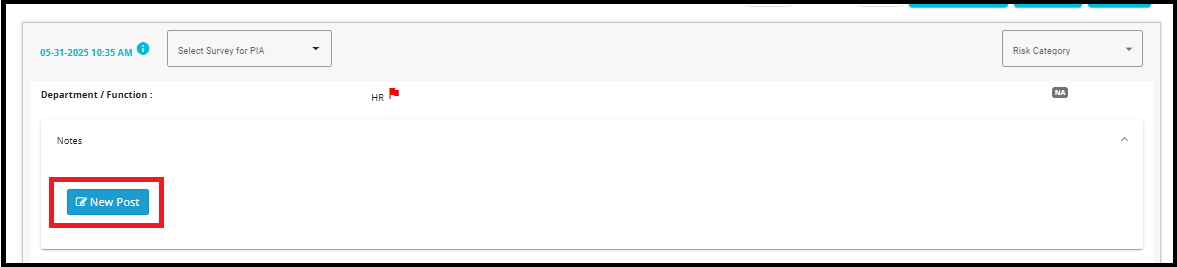
- Click on Notes against the answer to which you want to Add a note.

- Click on New Post and configure the note as per your requirements. The Notes can be configured in the same manner that you configured the Note in the Notes Section mentioned previously.
To learn how to create a note, please refer to the Notes and Task.doc.

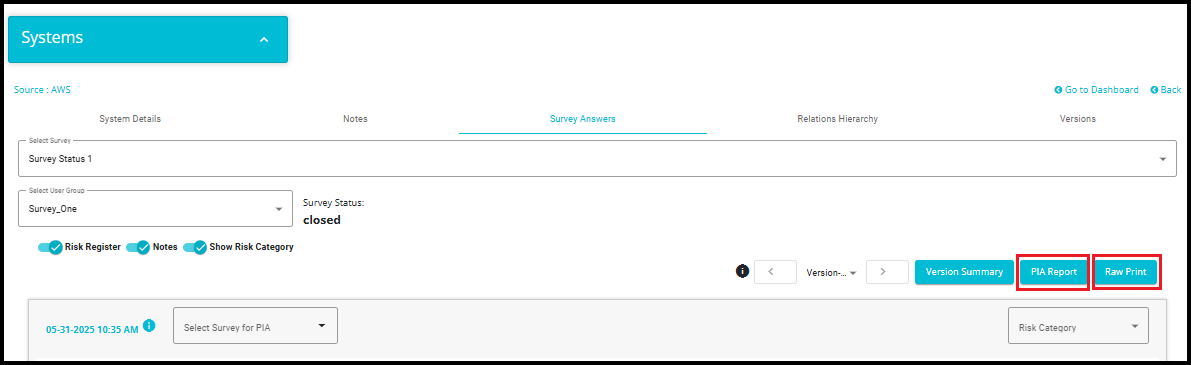
- The Survey Answers can be printed if required by clicking the Raw Print button or can be generated as a PIA Report upon clicking the dedicated button.
Note: The Survey View screen in Datamap module and the Survey View screen in Survey module are built using the same component. Therefore, all functionalities available in the Survey View Answer screen are also accessible in the Datamap Survey Answer screen. For more details, please refer to the View Survey Answers.docx documentation.